
Instagram DM Automation: How to Build Button-Based, Branching Message Flows
Build button-based, branching automatic replies to Instagram DMs, comments and ad messages with SOCIFLY Automation Flows; templates, business hours, AI and HTTP steps included.
Most messages that come in from Instagram carry the same questions: what's the price, do you ship, is there a discount code? A single automatic reply isn't enough to answer them; you need to offer the person choices and continue down a different path depending on their answer. With Automation Flows, added to SOCIFLY Instagram Automation, you can build Instagram DM automation as button-based, branching conversations.
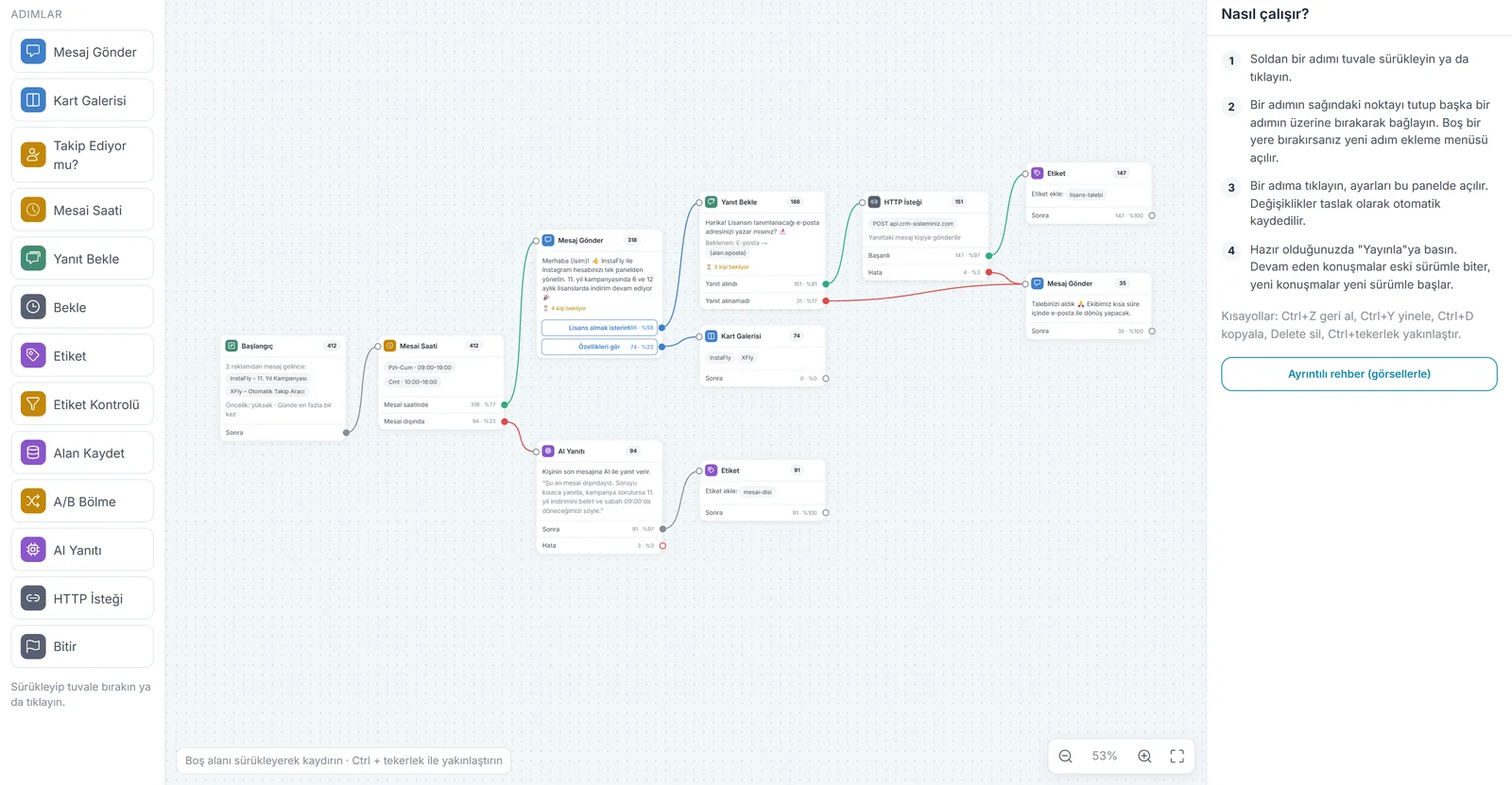
What Can You Do With Automation Flows?
Send a message with buttons to anyone who types certain words, comments on your post or messages you from your ad.
Split the conversation into different paths based on the button pressed, whether the person follows you or the time the message arrived.
Ask for details such as email or phone during the conversation and save them to the person's card.
Reply with AI at any point in the flow, or send an HTTP request to your own system.
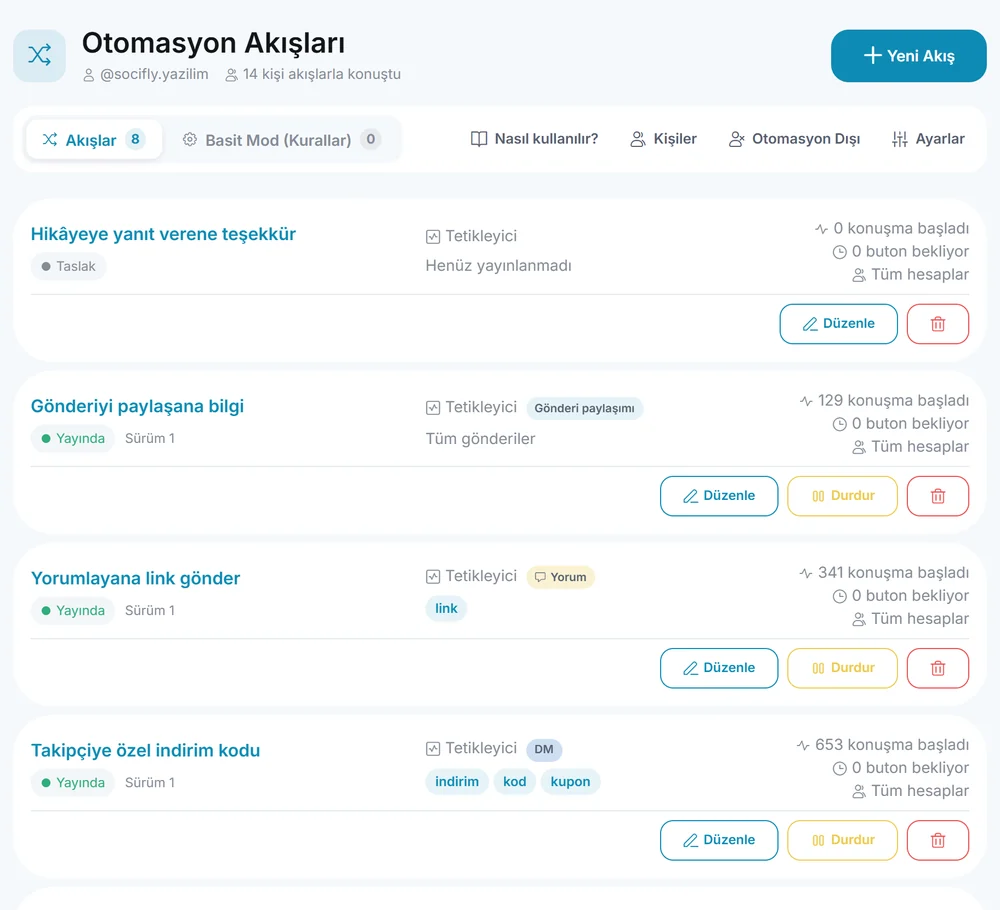
You can also follow how many people reached each step and which button they pressed with live counters.
Set Up Instagram Auto Messages With Ready-Made Templates
You don't have to start Instagram DM automation from scratch. Ready-to-run templates are waiting for you in the New Flow window:
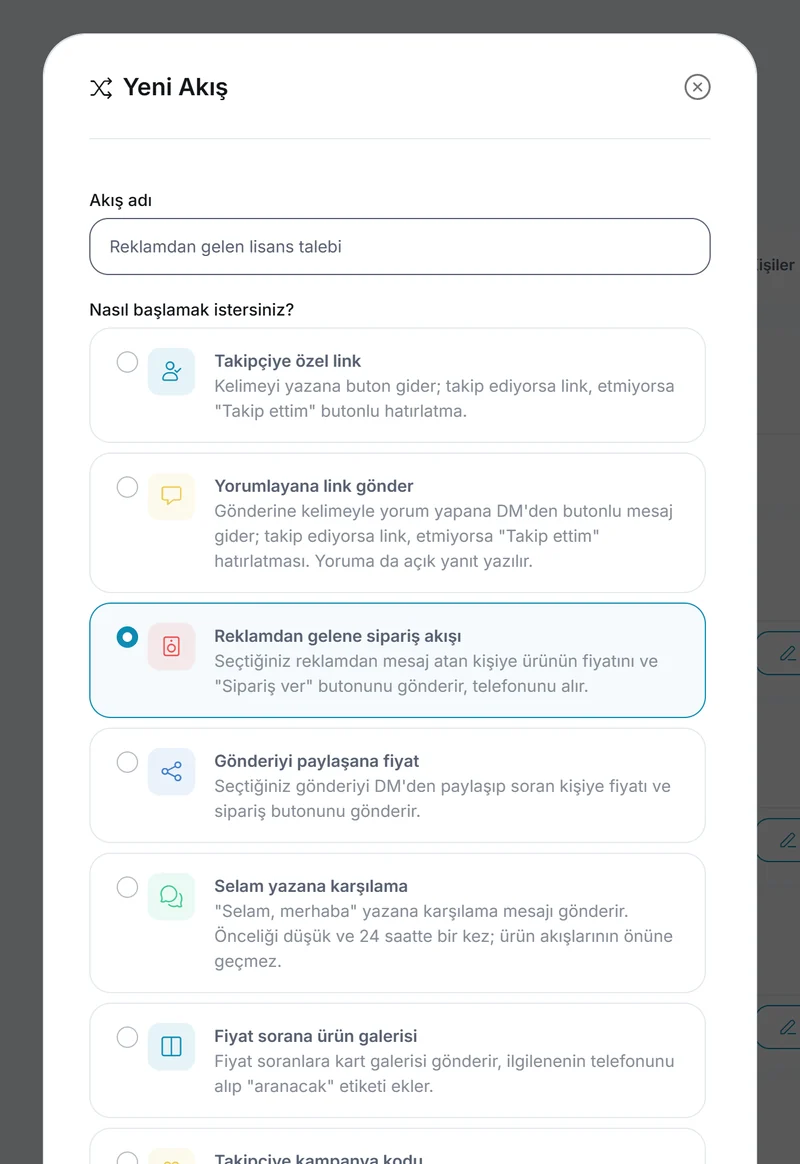
- Link for followers: A button goes to whoever types the keyword; followers get the link, others get a reminder with an "I followed" button.
- Send a link to commenters: Anyone who comments the keyword on your post gets a button message in DM, and a public reply is posted under the comment.
- Order flow for ad leads: Anyone who messages you from the ad you choose gets the product price and an Order button, and their phone number is collected.
- Price for post shares: Anyone who shares your post in DM and asks about it gets the price and an order button.
- Welcome for greetings: A welcome message goes to anyone who says "hi" or "hello". It has low priority and runs once a day, so it never gets ahead of your product flows.
There are also templates for sending a product gallery to price questions, a campaign code to followers, a thank-you to story replies and an A/B message test. Just pick a template and change the texts to fit your business.
How to Use the Flow Editor
The editor has the available steps on the left, the canvas where your flow is drawn in the middle and the settings of the selected step on the right. Drag a step from the left onto the canvas, then drop the dot on its right edge onto another step to connect them. Changes are saved automatically as a draft; your customers only see the new version after you press Publish.
Steps you can use:
- Send Message: Text and up to 13 buttons. You can use variables such as {isim} and {kullanici_adi} in the text.
- Card Gallery: Up to 10 product cards that scroll side by side.
- Is Following?: Splits the path based on whether the person follows your account.
- Wait for Reply: Asks a question, waits for a text, email, phone or number reply and saves it.
- Business Hours, Wait, Tag, Tag Check, Save Field, A/B Split, AI Reply, HTTP Request and End.
Automatic Replies to Messages From Instagram Ads
Messages from your ads usually start with the same question: "How much is it?" When you choose When a message comes from an ad in the start step, the Show ads that brought messages button lists, by name, the ads that recently brought messages to your account. You can connect each product's ad to its own flow.
The same goes for your posts. With the When my post is shared in DM option, the flow for the post you choose starts when someone shares your post or reel in DM and asks "how much is this?"
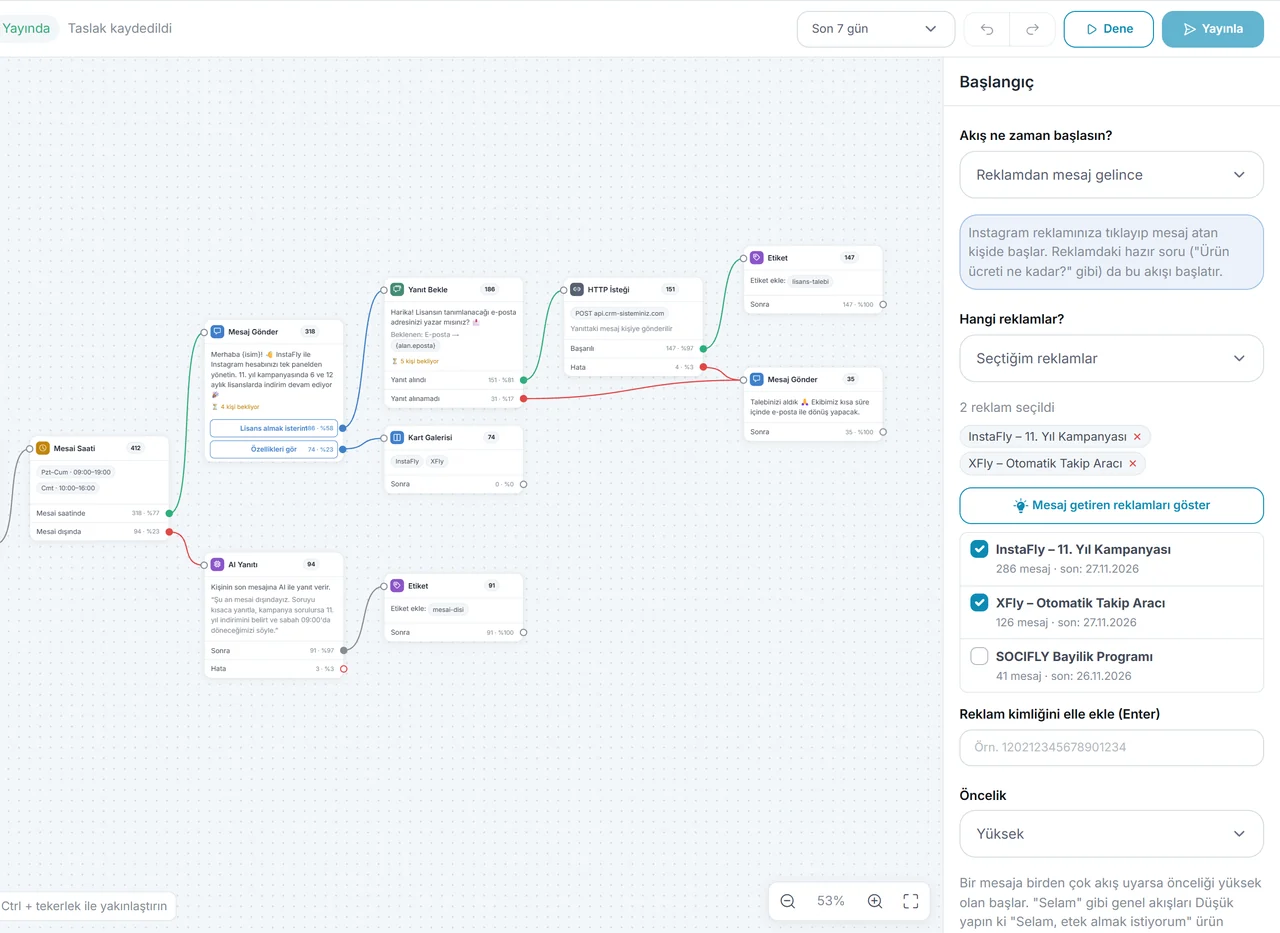
More than one flow can match the same message. For example, "Hi, I want to buy a skirt" matches both your welcome flow and your product flow. The Priority setting in the start step decides which one starts. With the How often should it start for the same person? setting, you can make sure a flow starts at most once a day for the same person, for example.
Instagram Auto Reply Outside Business Hours
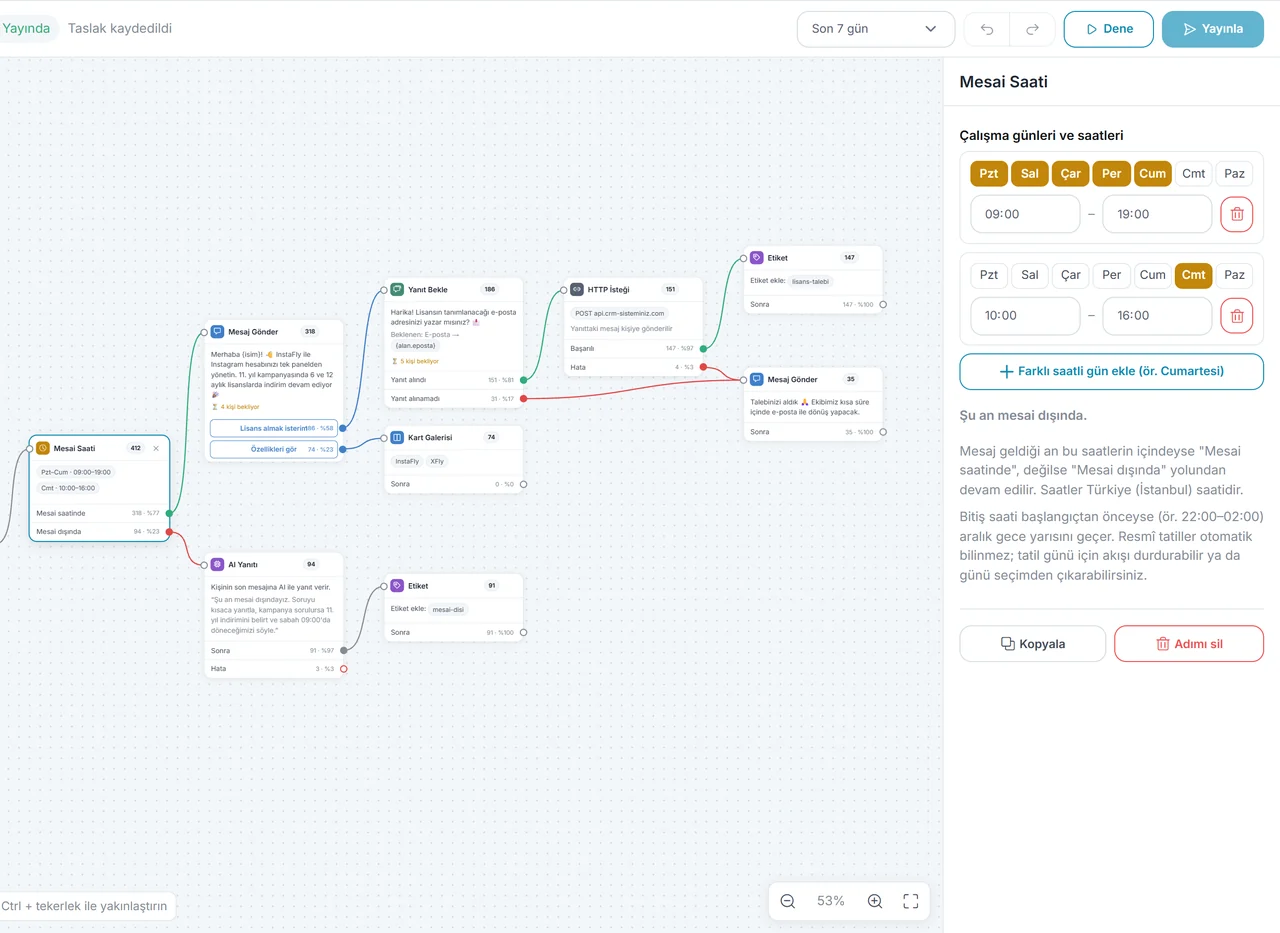
The Business Hours step continues down one path if the message arrived within your working hours and down the other if it arrived outside them. You choose the days and hours, and you can add separate ranges for days with different hours, such as Saturday.
That way you can send product info and buttons to people who write during business hours, and tell those who write after hours "We're closed right now, we'll get back to you at 09:00 in the morning" and ask for their phone number.
Step-Specific Instructions for AI Replies
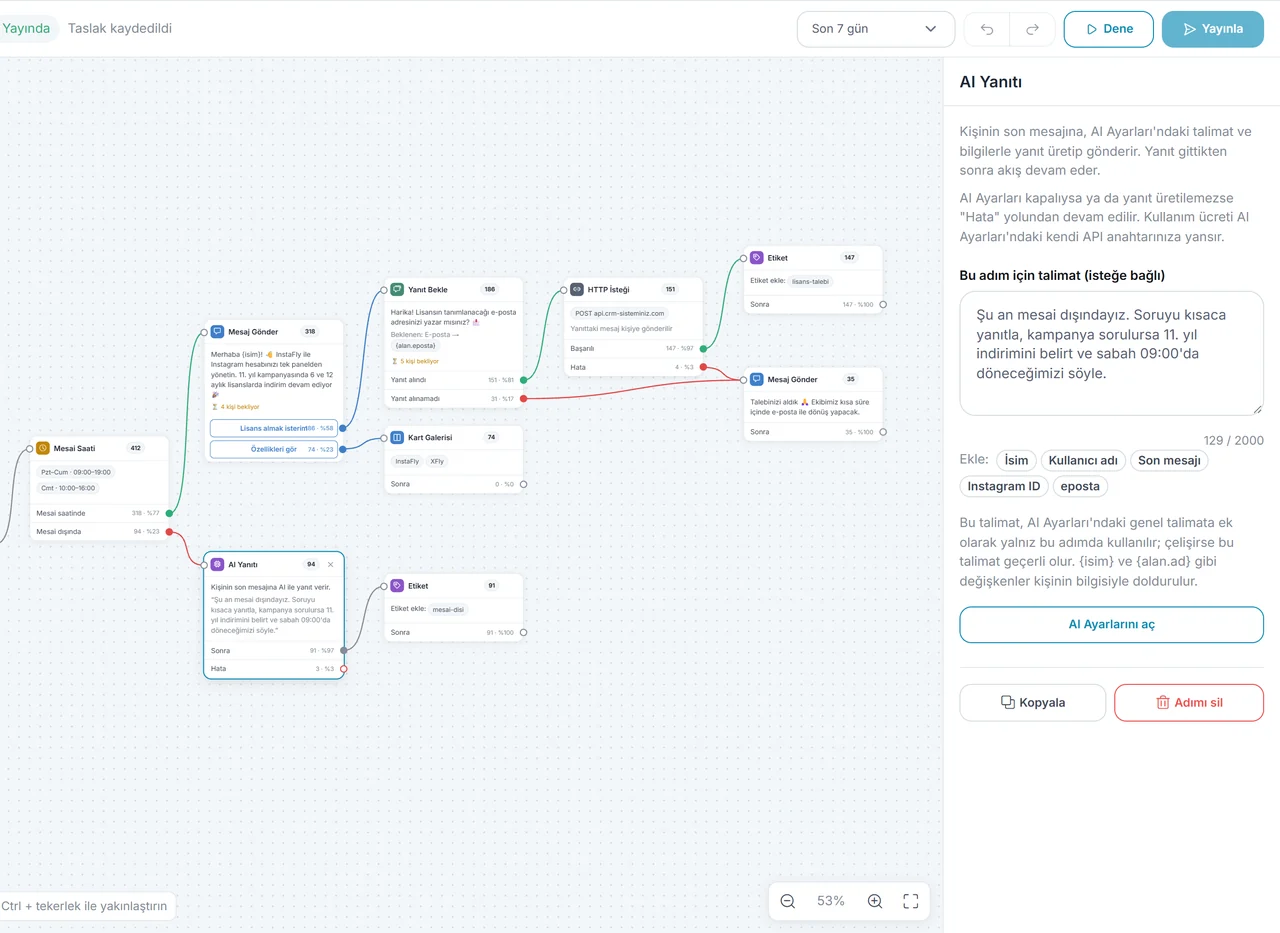
The AI Reply step answers the person's last message using the instructions and business details in your AI Settings. Text you write in the step's Instructions for this step box is used only at that point. That way the same AI behaves differently in different parts of the flow.
- On the branch for price questions: "Only answer price and shipping questions, write at most two sentences and ask for a phone number at the end."
- On the after-hours branch: "Say that we're closed right now, answer the question briefly and mention that we'll get back in the morning."
Connect Your Own System With HTTP Requests
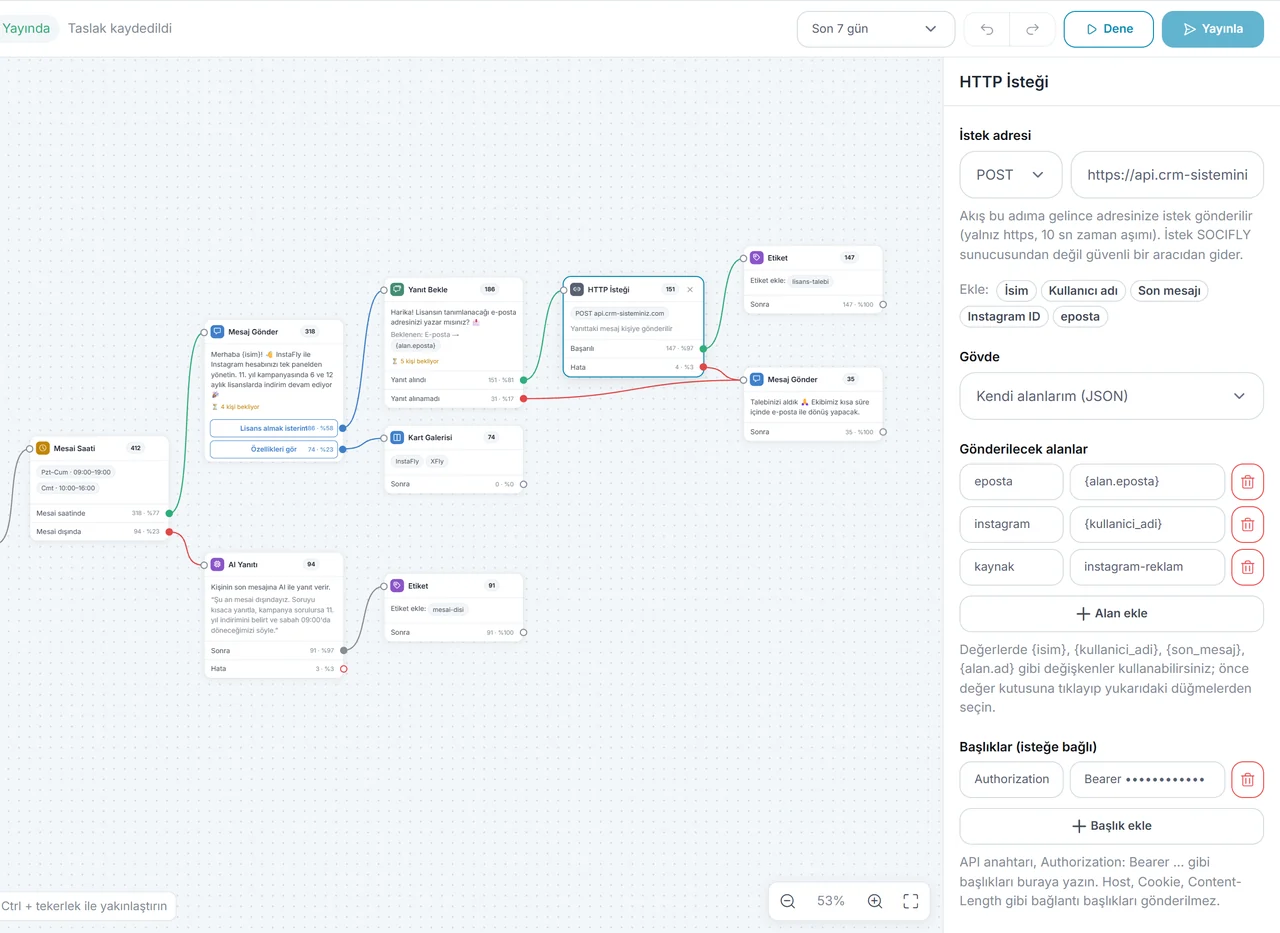
When the flow reaches the HTTP Request step, it sends a GET or POST request to the address you set. Use it to connect your own systems, such as order tracking, stock, coupon generation or a CRM, to the flow.
- You can build the body as JSON or form data with your own fields.
- If your system needs a key, you can add headers such as Authorization.
- With the Send the message in the response to the person option, you can pass the text your system returns on to the person.
- If your system doesn't respond or returns an error, the flow continues down the Error path.
For example, you can take the phone number of someone who writes "Where's my package?" with Wait for Reply, ask your order system with an HTTP Request and send the shipping details straight to them.
Try It Before You Publish
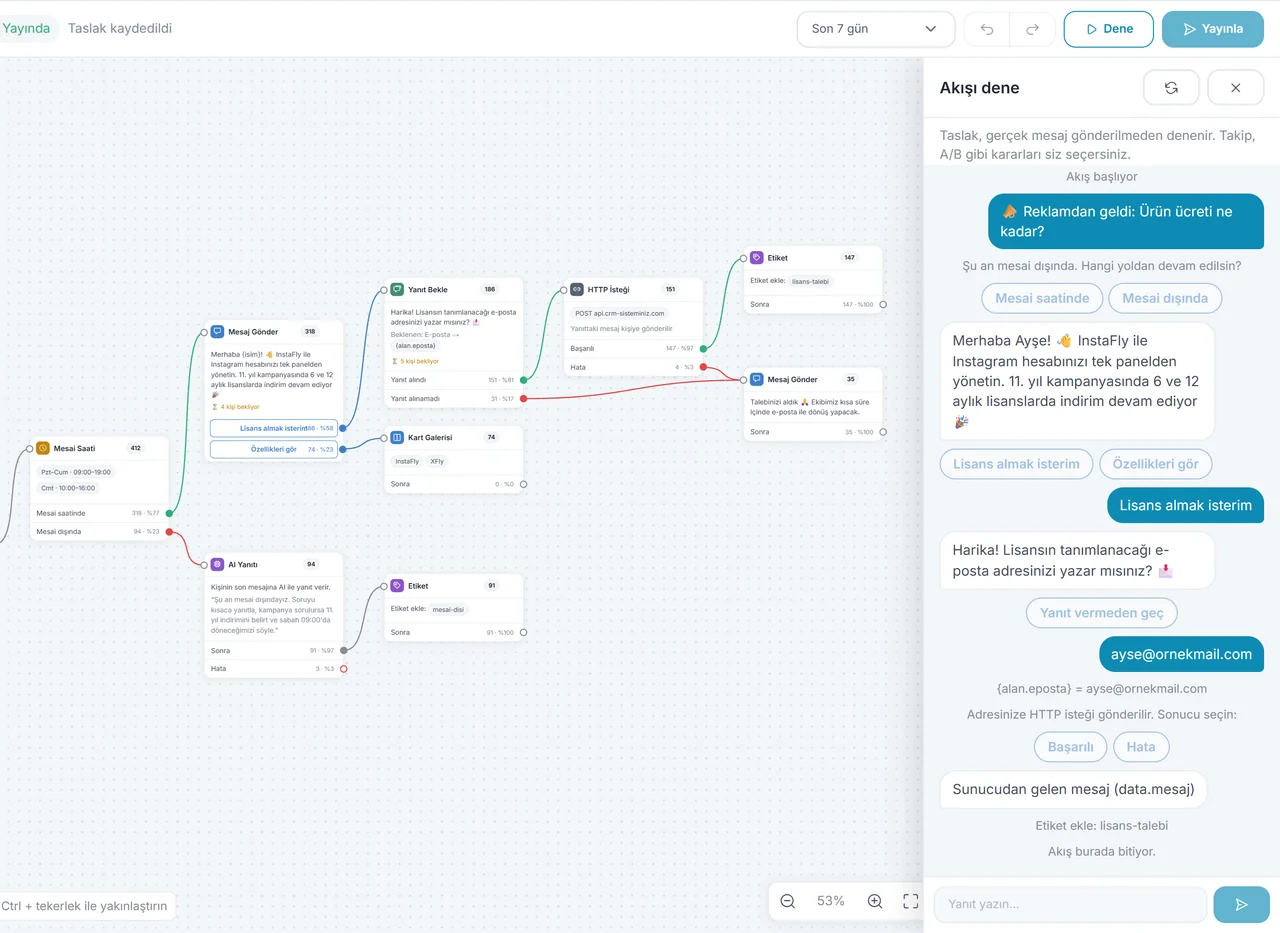
The Try button in the top bar runs your flow in a chat window without sending real messages. You can press buttons and choose which path to take at decisions such as "Is following?" or business hours. The running step is highlighted on the canvas.
After publishing, choose Today, Last 7 days or Last 30 days in the statistics selector in the top bar. Each step's header shows how many times it was reached, and each button shows how many people continued down that path and the percentage.
Instagram Inbox: Contact Card, Tags and Saved Replies
The people your flows talk to are gathered on one screen in the Inbox:
- You can filter conversations by Unread, Awaiting reply and Automation off, and narrow them down by tag.
- The contact card on the right shows the person's tags, the details saved in the flow (such as email and phone) and which flow they're currently in.
- You can add notes and add or remove tags.
- Above the chat you can see how much is left of Instagram's 24-hour reply window.
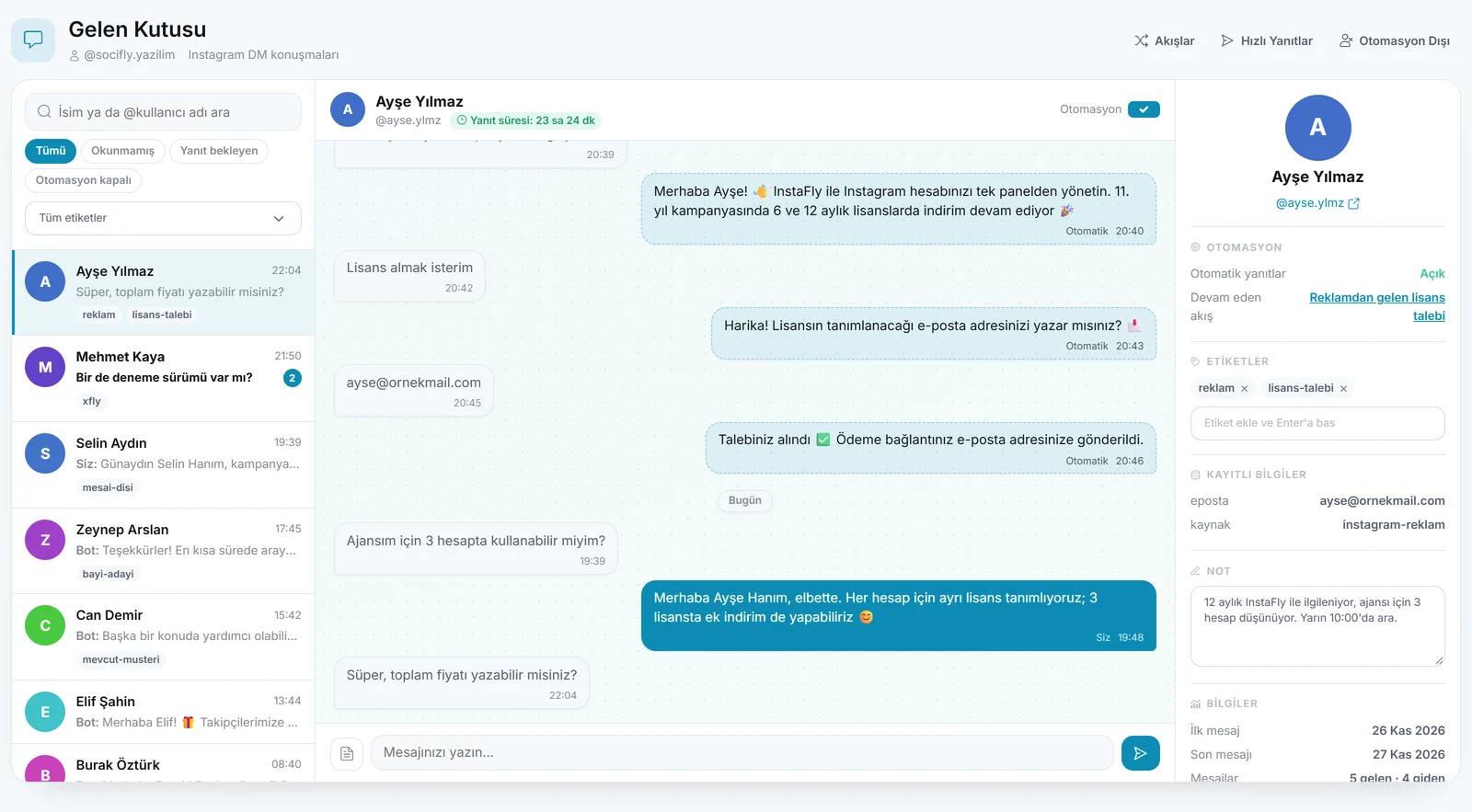
With the document button in the message box, you can insert saved texts from Quick Replies in one click.
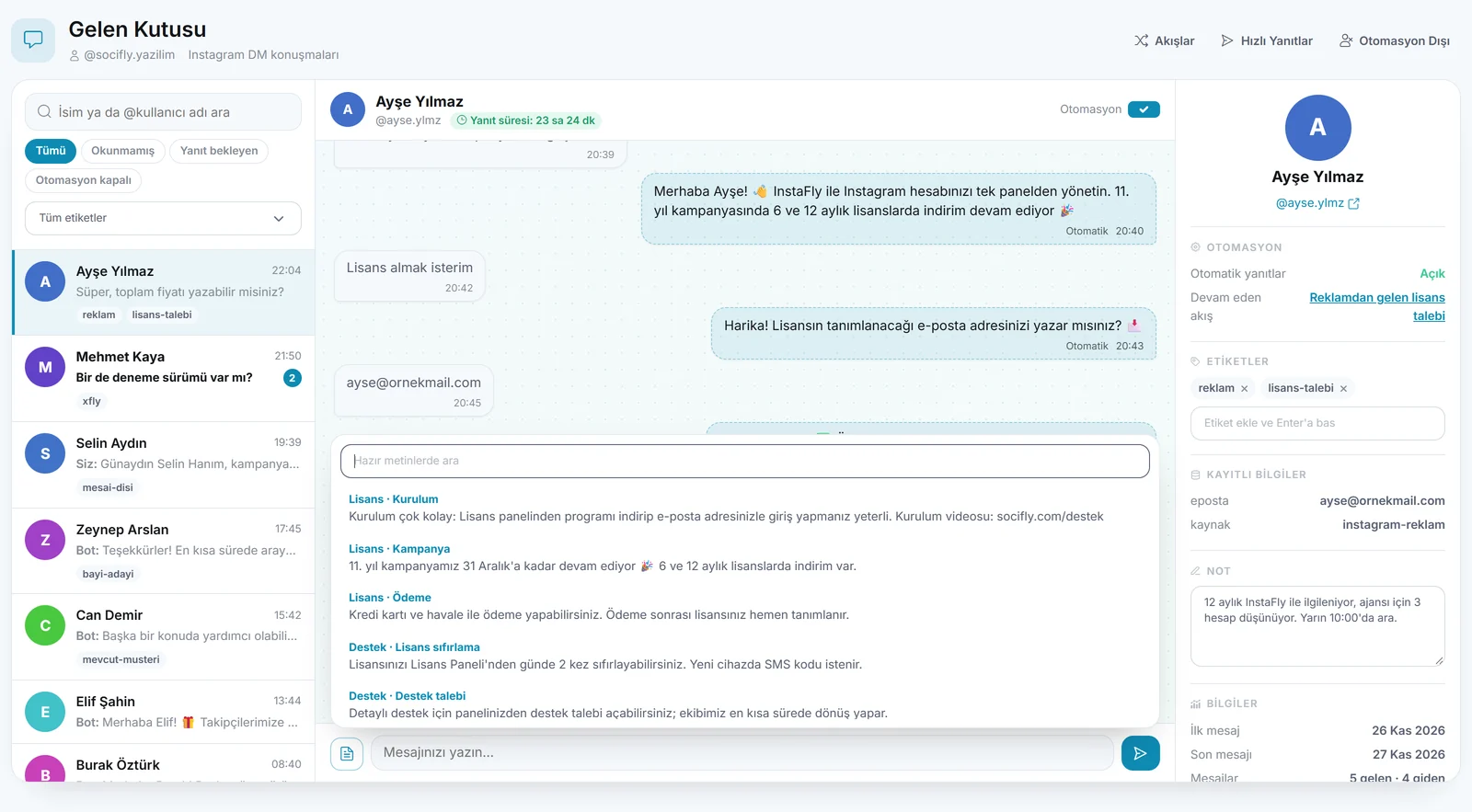
When you write to someone yourself, from the Instagram app or the inbox, flows, rules and AI stop replying to that person for a while. That way the bot never gets in the way of your own conversation.
Choose Who Won't Get Automatic Replies
You may not want some people to receive automatic replies at all: your competitors, people close to you, or special customers you handle yourself. You manage them in a single list on the Automation Excluded page.
- You can add someone in advance by @username or profile link, even if they've never written to you. Automation won't run when they first DM you or comment.
- People you turned automation off for from the chat screen also appear in this list.
- You can turn automation back on at any time with the Turn on automation button next to the person.
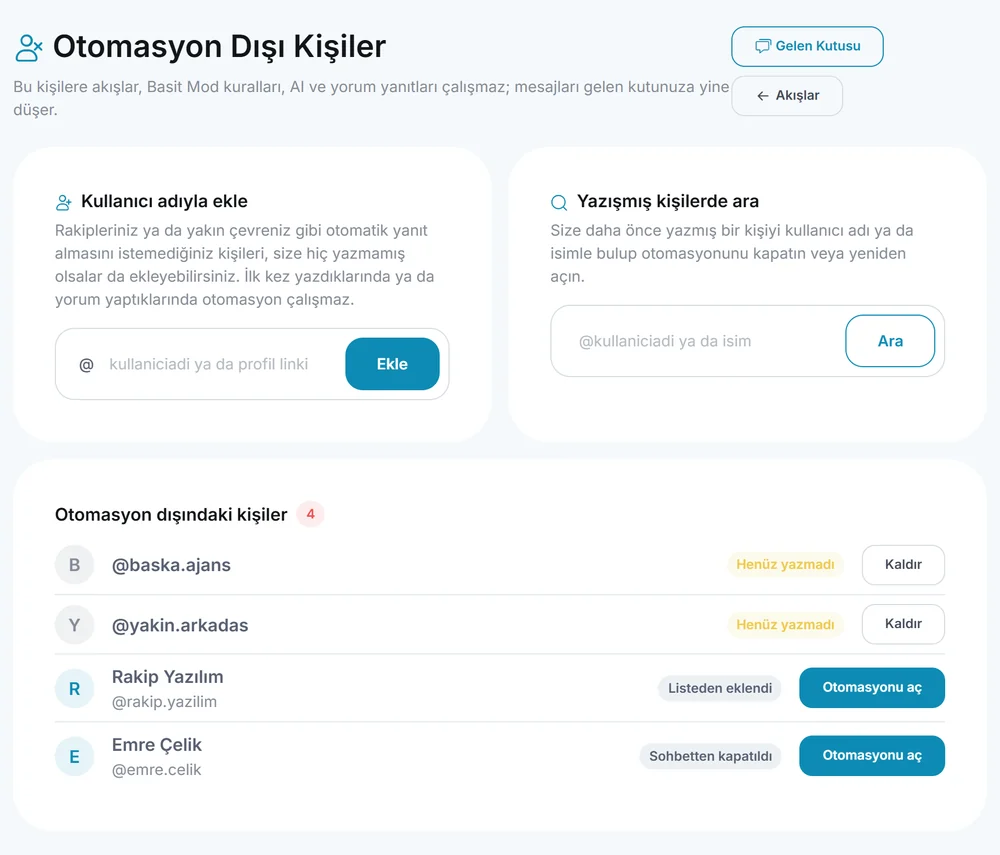
Messages from these people still land in your inbox; they just don't get automatic replies.
How to Use It
- Go to the My Services page in your SOCIFLY panel and click the Automation Flows tile in your Instagram Automation service.
- Press New Flow, give your flow a name and choose a template.
- Press Create and Edit. In the editor, change the message texts and buttons to suit you.
- Click the start step and, in When should the flow start?, choose whether it starts from a keyword, a comment or an ad.
- Test the flow without sending real messages with the Try button.
- When everything is ready, press Publish. If there's an unconnected button or an empty message, that step is marked in red.
For a detailed walkthrough, the How to use? button above the flow list opens the illustrated guide.
Why SOCIFLY Automation Flows?
- Publish your first Instagram DM automation in a few minutes with ready-made templates.
- Build flows that start from DMs, comments, ads, post shares, story replies and ig.me links.
- Shape the flow around how your business works with business hours, AI and HTTP request steps.
- See the results of every step and button with live counters.
- Manage your automation and your own conversations in one place with the inbox, contact card and excluded list.
At SOCIFLY, our goal is to give you more time while answering messages from Instagram quickly and accurately. Set up your first flow from a template, watch the counters for a few days and share the results with us. If there are new steps or triggers you'd like to see in flows, be sure to tell us in the comments. Automation Flows grow with your feedback. ❤️