
Create Reels From YouTube Videos or X Posts
Reels are still the content type with the widest reach on Instagram. But shooting and editing a new video every day, typing subtitles by hand and cropping everything for vertical format takes a lot of time. With InstaFly v15.2 we rebuilt the Reels Creation Tool from the ground up. Now you can turn the most-watched parts of a YouTube video, an X post or your own images into subtitled, branded, ready-to-share Reels in minutes.
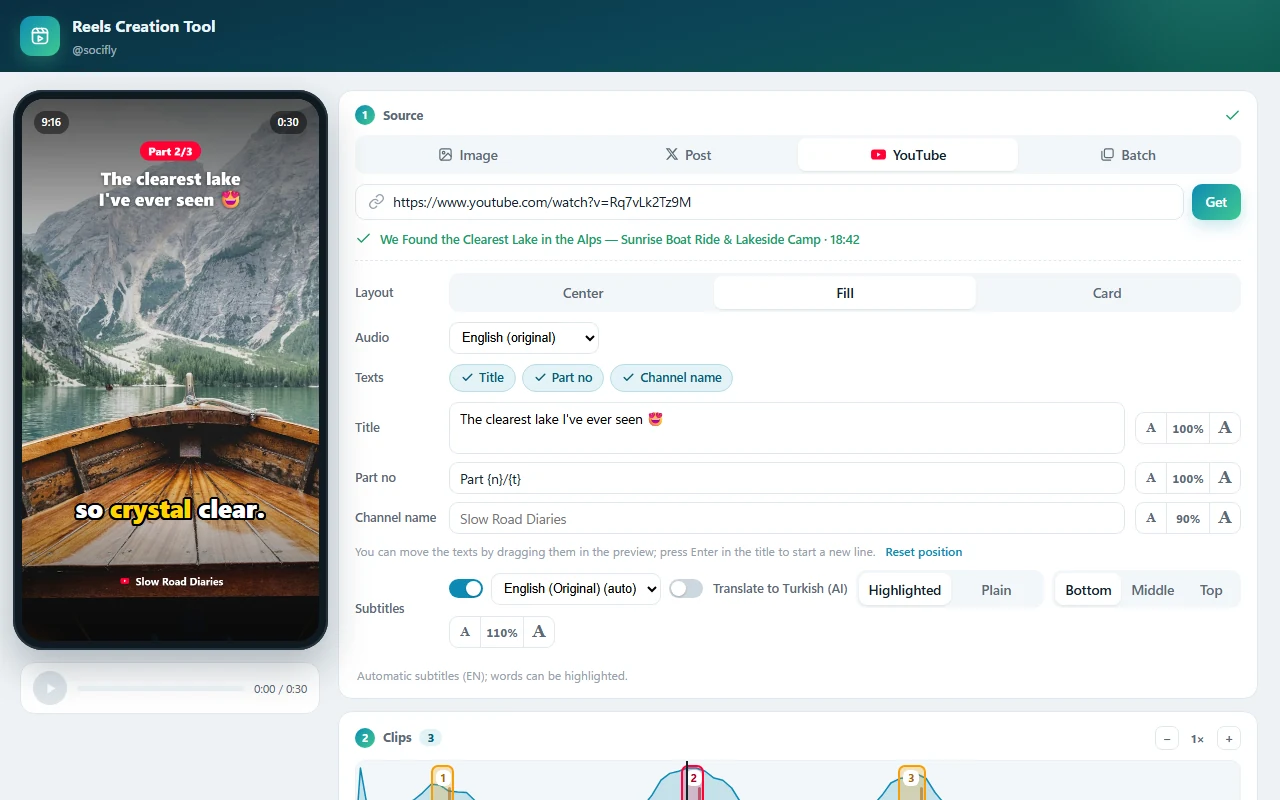
What Can You Do With the Reels Creation Tool?
The tool works with four different sources:
A Reel with music and a zoom effect from a single photo.
Draws an X (Twitter) post as a stylish card and turns it into a Reel. If the post has a video, it plays inside the card.
Creates a separate Reel from each part of a YouTube video you choose.
Add images and X links to the same list and each one becomes its own Reel.
Whichever source you choose, videos are created as 1080x1920 (9:16) MP4 and can be shared on Instagram right away.
How to Make Reels From a YouTube Video
A long YouTube video usually has a few "golden" moments. The Reels Creation Tool finds them for you.
Most-watched parts: When you fetch a video, YouTube's "most replayed" data is shown as a graph. The peaks are the places viewers went back to watch again. When you press Suggest, the tool picks as many clips as you want from these peaks.
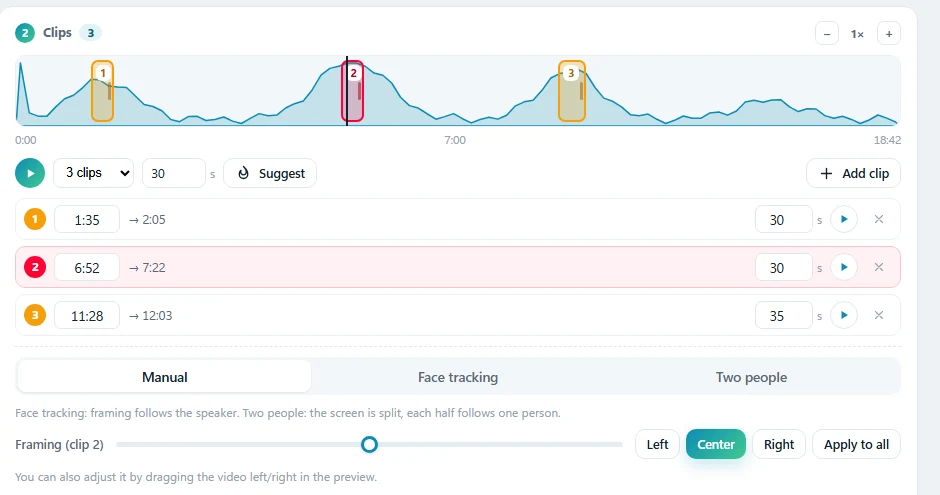
Editing clips: Drag the clip boxes on the graph to move them, and drag their right edge to make them longer or shorter. You can also type the start time and duration yourself.
One Reel per clip: If you pick 3 clips, 3 separate videos are created. You can add a part number such as "Part 1/3, Part 2/3", the video title and the channel name on top. Drag the texts in the preview to place them anywhere and size each of them separately.
No full download: The video is not downloaded to your computer; only the clips you pick are cut and encoded. This saves both time and disk space.
Smart Cropping: The Speaker Always Stays in Frame
When you turn a horizontal YouTube video into a vertical Reel, the sides have to be cropped. With the Fill layout you can crop in three ways:
- Manual: Choose which part of the video is visible with the Left / Center / Right buttons, or by dragging the video left and right in the preview.
- Face tracking: The frame follows the person speaking in the video. As they move, the crop window glides smoothly and jumps to the new spot when the scene changes.
- Two people: For interviews and podcasts, the screen is split into top and bottom halves and each half follows one person.
If the video has embedded black bars (cinema format or 4:3 videos), the tool finds and crops them automatically.
Adding Automatic Subtitles to Videos
Many people watch Reels with the sound off. A video without subtitles can be scrolled past in the very first second. In the Reels Creation Tool you can take subtitles from several sources:
- YouTube subtitles: The video's own subtitles or its automatic captions.
- From speech: If the video has no subtitles, the speech is transcribed on your computer. Your video is not uploaded anywhere.
- Translate with AI: Translate the subtitles of a foreign-language video with one click.
If you choose Highlighted, the spoken word stands out in yellow, giving you the word-by-word subtitle look you see in popular Reels. Plain uses simple white text. You can also set the subtitle position (Bottom / Middle / Top) and text size.
For dubbed YouTube videos you can pick the audio language. The preview and the created video use the audio track you choose.
Reels From X Posts and Batch Creation
If you want to share a trending tweet as a Reel, just paste the post link. The post is drawn as a card with the profile picture, name, text, date and like counts. You choose the card theme (Light / Dim / Black) and which details appear on it. You don't need to log in with your X account.
In the Batch tab, add all the images in a folder and X links (one per line) to the same list and create a separate Reel from each of them with one click. If an item has an error it is skipped and the rest keep going. If you picked music, the Start each video from a different part option plays a different part of the song in each video, so the videos don't look like copies of each other.
Adding a Logo Watermark to Videos
Make sure your videos stay recognizably yours even when they are shared on other pages. With the Watermark feature you can add your logo and/or your @pagename text to videos.
- Drag the watermark in the preview to position it.
- Rotate it with the mouse wheel, resize it with Shift + wheel.
- Use the opacity setting to make it bold or subtle. The "Faint in the middle" preset stamps a large, semi-transparent mark in the center of the video.
The watermark works with every source and your settings are remembered the next time you open the tool.
Write the Caption With AI, Share in One Click
The job isn't done when the video is ready; it also needs a caption. The Write with AI button looks at the content and writes a short, natural caption. For YouTube clips it looks at the video title, channel name and what is said in the clip; for X posts at the post text; and for images at the image itself. If Hashtag is on, relevant hashtags are added to the end. If you created several videos, Write all prepares all their captions at once.
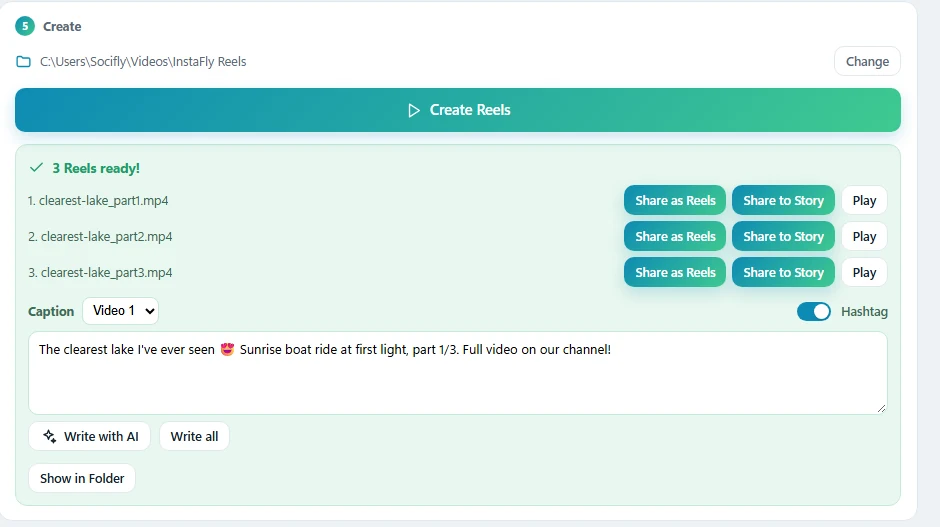
Then:
- Share as Reels opens the Quick Post window filled with your video and caption. From there you can also send it to the Post Scheduler and schedule it for a later date.
- Share to Story shares the same video to your story.
How to Use It
- On the InstaFly main panel, go to the Post & Story Tools menu.
- Click Reels Creation Tool.
- In the Source section, switch to the YouTube tab and paste the video link. The video details load automatically.
- Choose Fill as the Layout and turn on the title, part number and channel name texts.
- Turn on Subtitles and choose the subtitle source, style and position.
- In the Clips section, choose the number and length of clips and press Suggest, or add the clips yourself.
- Press Create Reels. The clips are created one after another.
- In the results box, type the caption or let AI write it, then share with Share as Reels or Share to Story.
Why the InstaFly Reels Creation Tool?
- No video editing skills needed, everything happens in one window.
- YouTube's "most replayed" data makes sure you don't miss the most engaging parts of a video.
- Face tracking and two-person mode make horizontal videos look professional in vertical format.
- Automatic subtitles and AI translation let you share foreign content with subtitles in your language.
- From creating the video to writing the caption and sharing it, the whole process happens inside InstaFly.
At InstaFly, our goal is to take over the tasks that cost you the most time in content creation. Try the new Reels Creation Tool, create your first video and share the results with us. If there are features you'd like us to improve, be sure to tell us in the comments. InstaFly grows thanks to you. ❤️